Matomo
Matomo is an open source web analytics platform, and an alternative to Google Analytics that gives you full ownership of your data. Its privacy controls, which anonymize or delete data, help you to comply with the GDPR.
Matomo on Clever Cloud uses the services of the platform, and Clever Cloud manages its version. You sign in with your Clever Cloud account.
Create a Matomo add-on
From the Console
- Create a new add-on by clicking Create in the sidebar, then Add-on
- Select the Matomo add-on
- Skip the link to an application, Matomo doesn’t need it
- Enter a name for the add-on, and select its region
With Clever Tools
Install Clever Tools, then create the add-on. Add --org to create it in an organisation, and --region to choose its region, par by default:
clever addon create addon-matomo myMatomoThe command shows the URL of Matomo:
Add-on created successfully!
ID: addon_xxxxxxxx-xxxx-xxxx-xxxx-xxxxxxxxxxxx
Real ID: matomo_xxxxxxxx-xxxx-xxxx-xxxx-xxxxxxxxxxxx
Name: myMatomo

Your Matomo is starting:
 - Access it: https://xxxxxxxxxxxxxxxxxxxx-matomo.services.clever-cloud.com
 - Manage it: https://console.clever-cloud.com/goto/addon_xxxxxxxx-xxxx-xxxx-xxxx-xxxxxxxxxxxx

Learn more about Matomo on Clever Cloud: https://www.clever.cloud/developers/doc/addons/matomo/
To serve Matomo on your own domain instead of a services.clever-cloud.com one, set it at creation with the access-domain option:
clever addon create addon-matomo myMatomo --option access-domain=matomo.example.comPoint it to Clever Cloud: in the par region, use a CNAME record to domain.par.clever-cloud.com., as Domain names details per region.
Underlying resources
A Matomo add-on runs on resources of your organisation, which you see and manage in the Console:
- A PHP application that runs Matomo, of size
XSwith a single instance at creation - A MySQL add-on of size
XXS Big Space, which stores the visits and the reports - A Redis add-on of size
S, which holds the cache and the queue of tracking requests
You can change these sizes afterwards, as for any application or add-on. A website with a lot of traffic, or long reports, may need a larger PHP application, or a larger MySQL add-on to keep its history.
Access Matomo
Open Matomo from the dashboard of the add-on in the Console, or with its URL. Sign in with the Clever Cloud button: Matomo uses your Clever Cloud account, so you don’t manage another password.
Log in with Clever Cloud single sign-on
Clever Cloud has its own SSO (Single Sign-On) authentication to authenticate to various services. All members of your organisation will be able to authenticate to the services in the same organisation, using their Clever Cloud account. When a service needs to authenticate you, it redirects to a login form. Enter your Clever Cloud credentials as well as your 2FA Authentication code if needed.
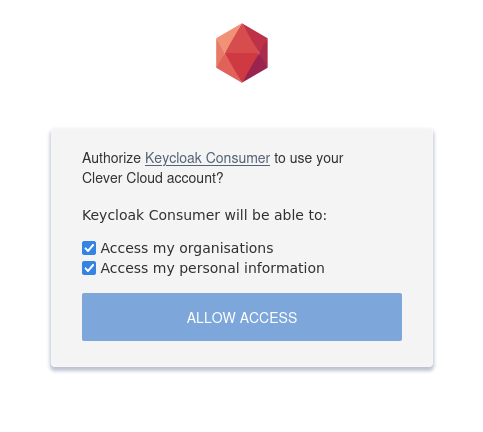
If it’s the first time you use the Clever Cloud SSO, accept all the tokens permissions listed, otherwise the backend service might not work correctly. If you mistakenly disabled some rights at some point, you have to revoke all tokens generated by this OAuth consumer:
- First, go to your user’s OAuth token in the Web console
- Then, find all tokens named
Keycloak Consumerand revoke them - Try to log-in again. The rights list should now be displayed.
Then, add your websites and their tracking code, and invite the members of your team. If you’re new to Matomo, start with its guides.
With Clever Tools, the operators commands show the information of the add-on, open it, and restart or rebuild its application:
clever features enable operators
clever matomo get myMatomo

clever matomo open webui myMatomo
clever matomo open logs myMatomo

clever matomo restart myMatomo
clever matomo rebuild myMatomo
Configuration by Clever Cloud
Clever Cloud configures Matomo when it starts, so it works without any setup:
- Sign-in with your Clever Cloud account, through the
LoginOIDCplugin - A Redis cache, and the
QueuedTrackingplugin, which queues the tracking requests in Redis and processes them in batches of 25 - Report archiving every hour by a scheduled task, instead of when someone opens a report
- Geolocation of visitors with the free DB-IP City Lite database, downloaded at each start
- Migrations of the database schema at each start, which follow the version of Matomo
To change the batch size, edit Number of requests that are processed in one batch in Administration > System > General settings.
Plugins
Matomo on Clever Cloud comes with the core plugins of Matomo, and the plugin files are those of the add-on. A plugin that you install, enable, or disable in Matomo doesn’t persist: each new instance starts with the plugins of the add-on, after a restart, a deployment, or a change of scaling. To use a plugin of the Matomo marketplace for good, contact Clever Cloud support.
Plugin changes don’t survive a restart
Install or enable your plugins again after each restart, deployment, or change of scaling of the PHP application.
Some plugins need more resources, such as GoogleAnalyticsImporter, which imports your Google Analytics history into Matomo. Before you run them, increase the size of the PHP application and of the MySQL add-on. If you enabled autoscaling on the PHP application, disable it: a new instance would stop the import, and disable the plugin.
Delete old data
Matomo keeps all its data by default, so the MySQL add-on grows with your traffic until it’s full. To delete old data on a regular basis, open Administration > Privacy > Anonymize data, then enable Regularly delete old raw data, Delete old aggregated report data, or both, and set the age of the data to delete. Then, choose how often Matomo deletes it in Schedule old data deletion.
Updates
Clever Cloud manages the version of Matomo, and Matomo applies the migrations of its database schema when it starts. The dashboard of the add-on in the Console shows its version, and clever matomo get myMatomo shows it with the version of PHP.