Logs
The Console shows the logs of your applications and add-ons, and the access logs of your applications, in the same interface. It follows live logs by default, or shows past logs over the time window you pick. You can select log lines and copy them with the keyboard or the mouse. Log availability for add-ons depends on the add-on and its plan.
By default, the text filter keeps the lines containing every word you type, whatever their case. You can switch it to an exact, case-sensitive string, or to a regular expression. The filter lives in the URL of the page, in the filter and filterMode parameters. It survives a page reload, and you can share a link to a filtered view.
To see a filtered line in context, select it and click Inspect. The interface clears the filter, pauses the stream, and centers the view on this line among the logs around it. Clear logs empties the view, to focus on the lines that come next. When the connection to the logs stream drops, the interface shows its reconnection attempts.
The settings panel lets you choose a color theme, wrap lines, and strip ANSI escape codes. You can also choose the date and time format, UTC or local time, and whether to show the instance names.
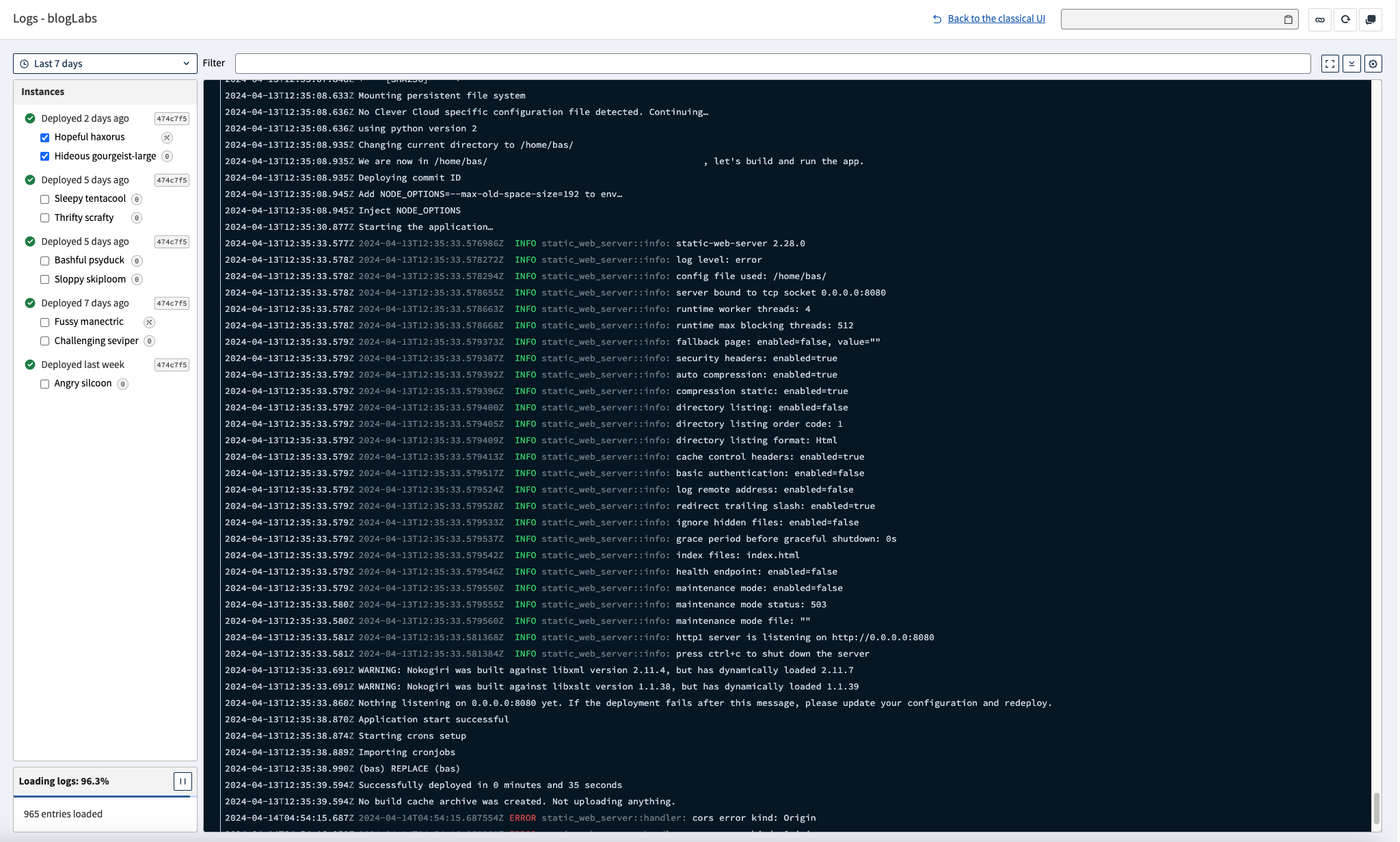
Get continuous logs from your application
Log management is also available through Clever Tools and the Clever Cloud API. They’re collected and sent through the Vector service enabled in every application deployed on Clever Cloud. To disable it, set the CC_PREVENT_LOGSCOLLECTION environment variable to true. You can see logs with the command down below.
clever logsYou can add --since or --until, followed by a duration, a number of seconds, a date (ISO8601 format) or now.
clever logs --since 2h
clever logs --until 2024-04-15T13:37:42Z
Without --until, clever logs keeps following new lines after printing the past ones, even with --since. Set --until to stop at a given end time and get the prompt back, as a script or an AI agent needs, and add --since to choose where to start. Use --until now to read up to the current time. The json output format requires --until:
clever logs --since 15m --until now
clever logs --since 15m --until now --format json
Clever Tools disables colors when its output isn’t a terminal, for example when you pipe it to another command. Add --color true to keep them, for example in a pager:
clever logs --since 15m --until now --color true | less -RLog messages can contain ANSI codes, which set colors, move the cursor or clear a line. In the human format, Clever Tools removes them when colors are disabled, with --no-color, a non-empty NO_COLOR or an output that isn’t a terminal. The json and json-stream formats keep messages as your application wrote them, unless you add --strip-ansi, which removes these codes in any format:
clever logs --since 1h --until now --format json --strip-ansi > logs.jsonYou can also get your add-on’s logs by using --addon flag, the value is the add-on ID starting by addon_, or its real ID:
clever logs --addon postgresql_xxxxxxxxclever logs.The output of your CRON jobs appears in these logs too, between the CMD and CMDEND lines the cron daemon writes when a job starts and ends. CMDEND doesn’t hold the exit code of the command: make your job write a message when it fails.
See Access Logs for incoming HTTP requests, and Drains to forward everything to an external tool.